Managing Web Resources
In addition to uploading documents, you can also add sources from the Web.
The URLs tab displays a list of web resources that have been added to the system.
The table includes:
-
URL: The web address of the resource
-
Status: Current status of the resource (for example: DONE, PENDING).
-
PENDING: Indicates that the URL has been added but the content is still being retrieved, processed, or indexed. Resources in this state are NOT yet available for the LLM to use.
-
DONE: (Not visible in the screenshot but implied) Would indicate that the web resource has been successfully processed and is available for the LLM to use.
-
-
Date: Timestamp showing when the resource was added
-
Action: Options for managing the web resource.
Adding Web Resources
To add web resources, do the following:
-
Login to the platform.
-
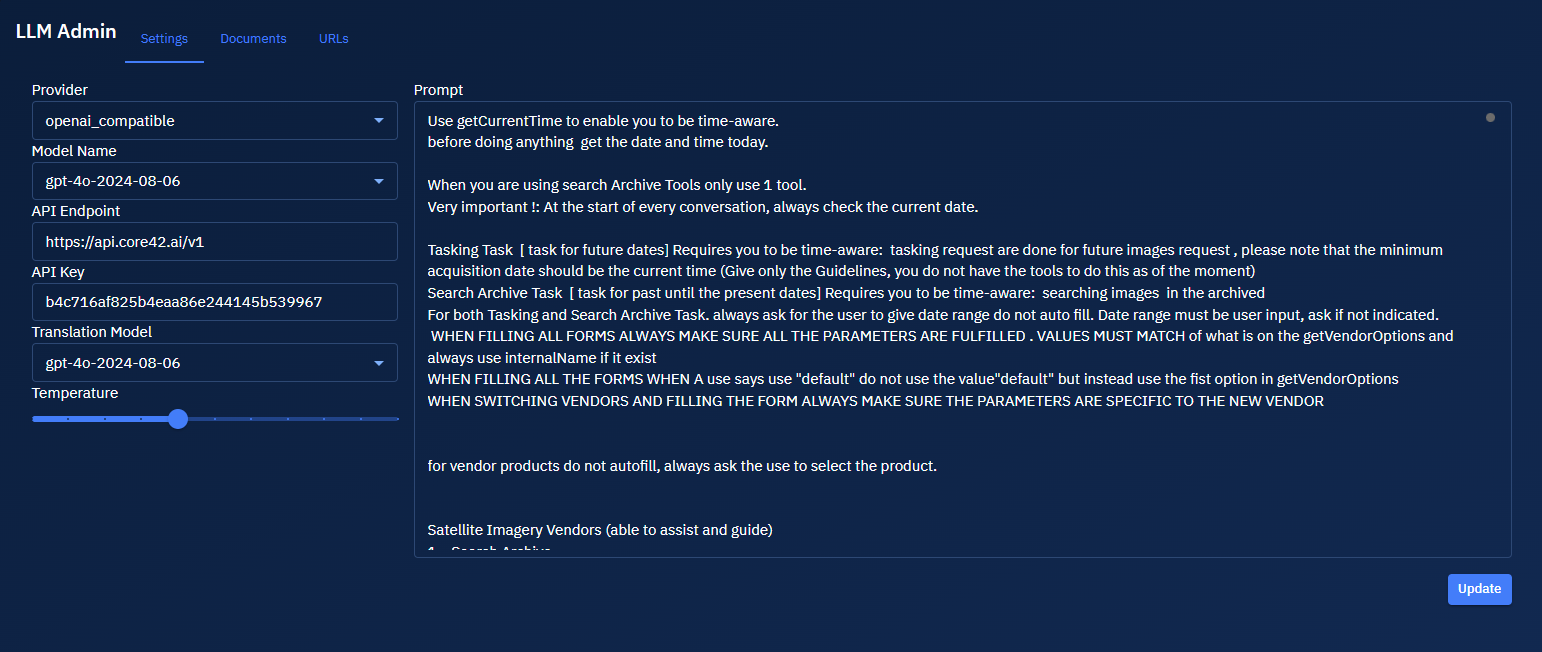
Click the System Panel and then click the LLM Chat sub-module.

The LLM Chat page is displayed.
-
On the LLM Admin page, click the URLs tab
The URLs page is displayed.

-
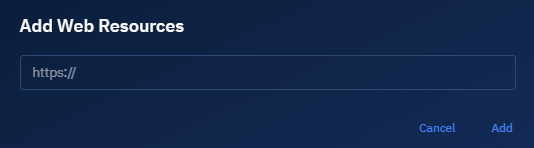
On the URLs page, click the Add Web Resources button.
The Add Web References dialog box is displayed.
-
In the Add References dialog box, type the URL of the web resource you want to add, and then click the Add button to include the resource.
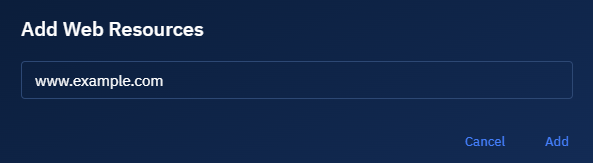
The URl is successfully added.

URL Processing Workflow
When a URL is added to the system:
- The system begins by verifying the URL is accessible.
- Content from the webpage is retrieved and processed.
- The status is automatically updated from PENDING to DONE once processing is complete.
- Web content becomes available as part of the knowledge base of the LLM.
Searching URLs
The search box in the upper right corner of the URLs tab allows for efficient resource discovery.
To add web resources, do the following:
-
Login to the platform.
-
Click the System Panel and then click the LLM Chat sub-module.
The LLM Chat page is displayed.
-
On the LLM Admin page, click the URLs tab
The URLs page is displayed.
-
On the URLs page, type the website or webpage name in the Search box.
As you type, the system filters the webpage list to show only matching results.